
Coppermine comes with a powerful engine that allows you to create your own theme, giving your gallery a unique look that matches the overall layout of your entire site. Other applications call them "skins" or "templates", well call them "themes".
There is a (constantly growing) number of user-contributed themes that can be previewed and downloaded from the Coppermine web site.
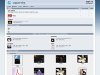 A theme with a light background and a cascaded horizontal menu that expands using CSS only. The new default theme for cpg1.5.x that has been inspired by the new theme for SMF 2.0. The navigation menu doesn't rely on JavaScript, but is purely CSS-driven. The curve theme is the "youngest" theme inside the Coppermine core and therefore is the most modern one. It looks clean, with a lot of rounded corners and should work with most existing sites with light backgrounds. The rounded corners will not work in all browsers.
 A theme with a dark background and a horizontal menu that expands for user interaction features
 A theme with a dark background and a smallish font size that works well for narrow space and smaller resolutions. Comes with two horizontal menus
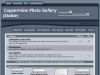 A theme with dark background and rounded edges
 A theme with a light background and a "conventional" horizontal menu
To upgrade an existing custom theme from cpg1.4.x to version 1.5.x, read the theme upgrade documentation.
If you are upgrading from cpg1.3.x to cpg1.5.x, you will have to perform your theme upgrade in two steps: first, you need to upgrade your custom theme from cpg1.3.x to cpg1.4.x and then on from cpg1.4.x to cpg1.5.x
You only have to upgrade your custom theme when upgrading between major versions (e.g. from cpg1.3.x to cpg1.4.x or from cpg1.4.x to cpg1.5.x), as from one major version to the next, the theming engine is subject to changes. When only upgrading from minor versions to the next (e.g. from cpg1.5.x to cpg1.5.y), you don't have to update your custom theme.
The core themes that come with Coppermine packages don't need to be updated, as they should be replaced during the upgrade and therefore will contain all needed changes. However: if you have based your custom theme on one of the core themes that come with coppermine (e.g. the classic theme), pay attention to possible changes. As suggested below, it's advisable to rename your custom theme to make sure that it doesn't accidentally get overwritten when upgrading.
Coppermine themes are stored in the "themes" directory, each consists of 3 primary files :
Additionally, there usually is a folder named "images" that resides within the theme folder (themes/theme_name/images/) that contains the images used by the particular theme (logos, bullets, backgrounds and other graphical resources needed).
When a Coppermine page is being parsed, the core code will call theme functions. If those functions exist in your custom theme, they will be taken into account. If a particular function does not exist in your custom theme, the core function will be used. The core functions (the default theme behaviour if you want to put it that way) reside in includes/themes.inc.php.
There are step-by-step instructions provided in the section "Creating your custom theme" that you should read for details. If you're looking for examples how to modify your custom theme, you should read the page "Theme examples" thoroughly, as it contains solutions ready for copy'n paste that allow you to modify your custom theme dramatically, especially as far as additional content is concerned. Pay attention as well to the sections that deal with the "copyright-disclaimer in footer" and the section "Dynamic (PHP-driven) content".